
May 25, 2025
UFO FPS Test: What It Is and How to Use It
The UFO FPS test is the internet standard for seeing exactly how smooth your monitor really is. Here is how it works and what your results mean.
What Is the UFO FPS Test?
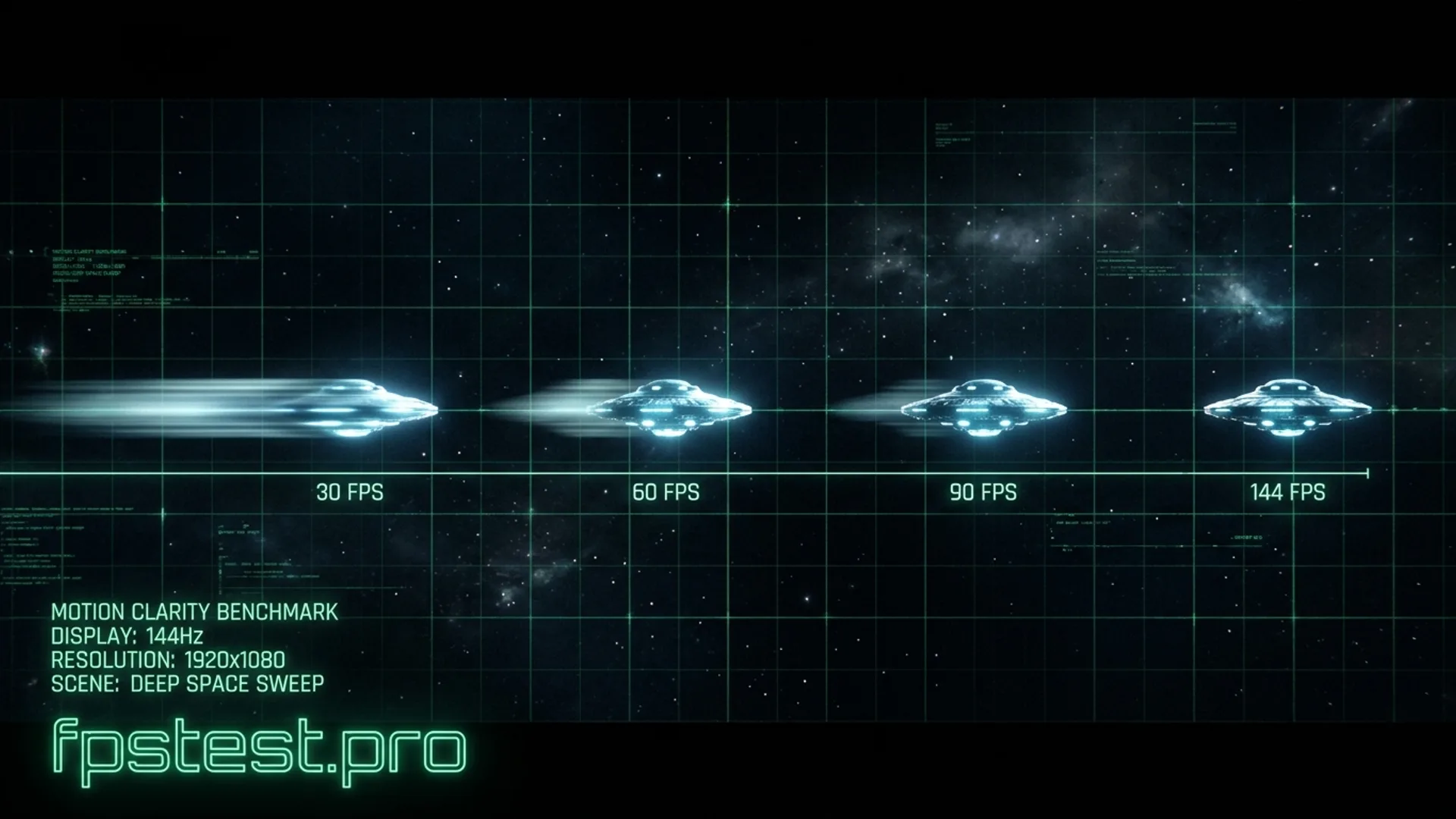
A UFO FPS test is a motion test that animates objects across the screen at several frame rates simultaneously, so you can see with your own eyes how much smoother high FPS looks. The format was popularized by Blur Busters, whose TestUFO site made it the internet standard for display motion testing. Our free UFO motion test uses the same idea: four tracks running at 30, 60, 120, and 144 FPS, plus live detection of your real refresh rate. Unlike software FPS counters that tell you what your GPU produces, a UFO test shows you what your eyes actually see. That is a crucial difference. You can have a GPU pushing 200 FPS, but if your monitor is set to 60Hz, every track will look identical because your screen physically cannot show more than 60 unique frames per second.
The Science Behind the Test
On our UFO test the objects move at the same on-screen speed on every track (720 pixels per second by default, adjustable from 240 to 1920), while each track commits position updates at its own frame rate. At 30 FPS each update is visible for 33 milliseconds, which creates clearly visible steps and blur as your eyes track the object. At 144 FPS updates arrive every 6.9 milliseconds and the motion looks far cleaner. The science involves three concepts working together.
Sample and Hold
Modern LCD and OLED displays hold each frame stationary until the next refresh cycle. Your eyes move continuously but the image stays frozen. This mismatch between continuous eye movement and discrete frame updates is what creates retinal blur at lower frame rates.
Persistence of Vision
Your visual system blends images together when they appear in rapid sequence. At 30 FPS the gap between frames is long enough that your brain perceives the motion as choppy. At 144 FPS the gaps are so short the motion appears fluid and continuous.
Motion Picture Response Time
MPRT, a measurement pioneered by Blur Busters, describes how much blur a human eye perceives during motion. This is different from the GtG (Gray-to-Gray) response time you see on monitor spec sheets. MPRT is what actually matters for gaming feel, and watching a moving object on a UFO-style test is the easiest way to see the effect it describes, even though a browser test cannot measure MPRT numerically.
FPS vs Hz: Why Your Monitor Is the Bottleneck
FPS measures how many frames your GPU generates per second. Hz measures how many times your monitor physically refreshes per second. Your monitor is the final gatekeeper. A 60Hz monitor can only show 60 unique frames per second no matter how powerful your GPU is. This is why the UFO test caps at 60 on a 60Hz monitor even if your PC is producing 300 FPS. The GPU frames queue up but the monitor can only display 60 of them each second. The other 240 are wasted.
| Refresh Rate | Max Visible FPS | Frame Time | Perceived Motion |
|---|---|---|---|
| 60Hz | 60 FPS | 16.7ms | Noticeable blur and stepping |
| 120Hz | 120 FPS | 8.3ms | Much sharper |
| 144Hz | 144 FPS | 6.9ms | Very sharp |
| 240Hz | 240 FPS | 4.2ms | Near-perfect clarity |
| 360Hz | 360 FPS | 2.8ms | Elite clarity |
Why Is My UFO Test Stuck at 60 FPS?
This is the most common question about the UFO test. If your monitor is rated at 144Hz but the UFO test only shows 60 FPS, here are all the possible causes in order of likelihood.
Windows Display Settings
Right click your desktop and select Display Settings. Scroll to Advanced Display. Check the refresh rate shown. Windows often defaults to 60Hz even on high refresh monitors. Change it to your monitor maximum and retest.
Wrong Cable Type
HDMI 2.0 can cap you at 120Hz at 1080p. For 144Hz and above use DisplayPort 1.4 or HDMI 2.1. If you are using an older cable that came in the box, this is likely your problem. Swap to DisplayPort for best results.
Browser or Battery Mode
Browsers throttle animations when your laptop is on battery saver mode or unplugged. Plug in your laptop and retest. Chrome and Edge tend to score best for high refresh rate browser tests.
Outdated GPU Drivers
Old GPU drivers can cause incorrect refresh rate output. Update your Nvidia or AMD drivers to the latest version and check your GPU control panel to confirm the refresh rate matches your monitor spec.
What the UFO Test Results Actually Mean
When you run the UFO FPS test, look at each track carefully. The spacing between UFO positions tells you the frame rate. Identical spacing across all tracks means your monitor is capped at one refresh rate. You should see clearly different spacing and blur amounts on each track.
Bright Halos Around the UFO
If you see bright white or light colored halos appearing just ahead of the UFO, your monitor overdrive setting is too aggressive. Reduce the overdrive level in your monitor OSD menu.
Dark Shadows Behind the UFO
Dark ghosting trails behind the UFO mean your panel response time is too slow. The pixel has not finished transitioning before the next frame arrives. This is common on IPS panels at very high refresh rates.
All Tracks Look Identical
If 60, 120, and 144 FPS tracks all look the same, your monitor is almost certainly capped at 60Hz. Check your Windows display settings first. This is the most common fix.
Mouse Polling Rate and FPS Drops
Some users notice FPS dropping on the UFO test when moving their mouse. This is a real and documented issue. High polling rate mice (1000Hz and above) generate many interrupt requests to the CPU per second. On some systems this overhead disrupts the browser rendering thread, causing frame drops during mouse movement. Microsoft released Windows 11 updates to address high frequency mouse input handling. If you experience this, try lowering your mouse polling rate to 500Hz during the test, or test without moving the mouse.
How to Get the Most Accurate UFO Test Results
Follow these steps before running the test for the most reliable results.
Disable Variable Refresh Rate
Turn off G-Sync or FreeSync before testing. Variable refresh rate technology adjusts your monitor refresh dynamically which can cause uneven spacing between UFO positions, making results harder to read.
Close Background Tabs and Apps
Close all other browser tabs and background applications. Discord, Spotify, and other apps consuming CPU or GPU resources can affect frame pacing and give inaccurate results.
Plug In Your Laptop
Always test with your laptop plugged into power. Battery saver mode throttles both CPU and GPU performance, which directly caps your browser frame rate.